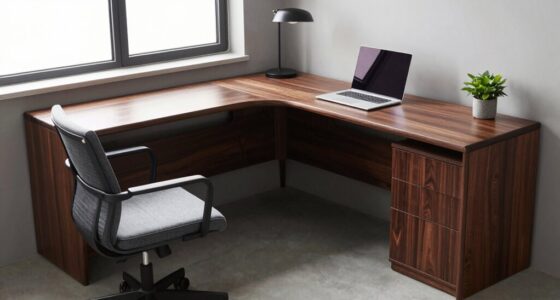
To quickly dial in your standing desk ergonomics, start by adjusting the desk height so your elbows are at a 90° angle and your forearms are parallel to the ground. Position the monitor at eye level about an arm’s length away to reduce eye strain. Place the keyboard and mouse to support natural arm and wrist alignment. For extra comfort, use ergonomic accessories. Keep experimenting with these adjustments, and you’ll discover how to optimize your setup for best comfort and productivity.
Key Takeaways
- Adjust desk height so your elbows are at a 90° angle and wrists are straight while standing.
- Position the monitor at eye level, about an arm’s length away, to reduce eye strain.
- Use monitor risers or mounts for precise screen placement and proper height adjustment.
- Ensure keyboard and mouse are aligned with elbows at 90°, supporting natural arm movement.
- Regularly fine-tune your setup, including foot position and lighting, for optimal comfort and ergonomics.
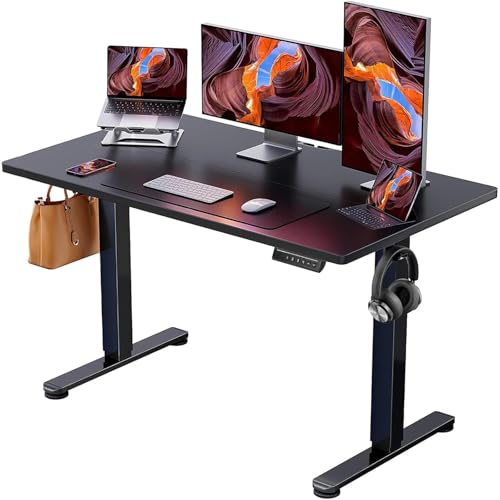
ErGear Height Adjustable Electric Standing Desk, 48 x 24 Inches Sit Stand up Desk, Memory Computer Home Office Desk, Black
Electric Height Adjustable Standing Desk for Comfortable Work – Switch effortlessly between sitting and standing with this electric…
As an affiliate, we earn on qualifying purchases.
As an affiliate, we earn on qualifying purchases.
Adjust Your Standing Desk Height for Comfort

To guarantee maximum comfort and reduce strain, it’s essential to adjust your standing desk height so that your monitor is at eye level and your elbows are at a 90-degree angle. Your desk height should support a natural arm position, preventing shoulder and wrist strain. Use ergonomic accessories like adjustable keyboard trays or monitor risers if needed to fine-tune your setup. Proper desk height helps maintain good posture and reduces fatigue during long hours of standing. Keep in mind that your workspace should promote movement and comfort, so don’t hesitate to make small adjustments until everything feels right. A well-set desk height minimizes discomfort and sets the foundation for an ergonomic, healthy standing workstation. Adjustable desk height is crucial for customizing your workspace to fit your unique ergonomic needs. Additionally, paying attention to ergonomic principles can further enhance comfort and prevent musculoskeletal issues. Incorporating dynamic movement into your routine can also help reduce strain and improve circulation throughout your workday, especially when supported by Gold IRA Markets insights on maintaining optimal posture. Remember that posture awareness plays a vital role in preventing long-term discomfort and promoting overall well-being.

BONTEC Dual Monitor Stand Riser with Smartphone Holder, Adjustable Length & Swivel Angle, Ergonomic Wooden Desktop Organizer for PC Monitor, Laptop, Printer, Large Storage, White
DUAL MONITOR STAND WITH ADJUSTABLE LENGTH & ANGLE – Elevate two monitors to an ergonomic height for better…
As an affiliate, we earn on qualifying purchases.
As an affiliate, we earn on qualifying purchases.
Position Your Screen at Eye Level

Have you positioned your screen at eye level? Proper monitor placement guarantees comfortable viewing and reduces neck strain. To achieve ideal eye level alignment, consider these tips:
- Adjust your monitor height so the top of the screen is roughly at your eye level.
- Keep the monitor about an arm’s length away to minimize eye fatigue.
- Use monitor risers or mounts if necessary to fine-tune placement.
- Safety tips include ensuring your workspace is well-lit and free of glare to prevent eye strain and discomfort. Additionally, ergonomic workspace setup can further enhance comfort and safety during prolonged use, especially when considering monitor calibration to achieve accurate color and image quality.
Maintaining proper monitor positioning is essential for long-term ergonomic health and can help prevent repetitive strain injuries. Being aware of ergonomic principles can guide you in creating a healthier, more comfortable workspace.

HUANUO Keyboard Tray Under Desk, 360 Adjustable Ergonomic Sliding Keyboard & Mouse Tray, Under Desk Keyboard Tray Slide Out, Keyboard Holder Under Desk for Typing in Home, Office Work, 25"W x 9.84"D
Large & Perfect Size – Full size keyboard drawer with a 25” x 9.84” , please kindly confirm…
As an affiliate, we earn on qualifying purchases.
As an affiliate, we earn on qualifying purchases.
Place Your Keyboard and Mouse for Best Posture

To maintain good posture, position your keyboard and mouse so your elbows are at a 90-degree angle, keeping your forearms parallel to the floor. Make certain your wrists are supported to prevent strain and allow natural movement. Proper alignment here helps reduce fatigue and promotes comfort throughout your workday. Additionally, incorporating ergonomic accessories like wrist rests can further enhance your comfort and support during long periods of typing. Using appropriate tracking gear such as GPS or Bluetooth devices can also help you stay mindful of your workspace setup and improve overall ergonomic practices. Staying informed about emerging sports tech trends can inspire innovative ways to optimize your workspace for better focus and productivity, even outside of traditional office settings. Being aware of protective e-bike gear such as motorcycle-style jackets can also motivate you to adopt safer habits during active work commutes or breaks, promoting overall well-being. Exploring hidden foodie gems in Southeast Asia can provide a well-deserved break and inspiration outside of your workspace.
Elbow Angle Alignment
Ensuring your elbows are at the right angle is crucial for maintaining comfort and preventing strain during long work sessions. Proper elbow alignment promotes elbow comfort and reduces fatigue. To achieve this, focus on these key points:
- Keep your elbows close to your body, forming about a 90 to 100-degree angle.
- Adjust your keyboard and mouse height so your arms are in a natural, relaxed position.
- Maintain a slight tilt of your forearms, avoiding wrist extension or flexion.
- Incorporate ergonomic accessories such as wrist rests or adjustable keyboard trays to support optimal posture alignment.
- Pay attention to your workspace setup, ensuring your desk and chair height facilitate proper elbow positioning for sustained comfort. Additionally, consider ergonomic principles to optimize your overall workstation ergonomics.
- Regularly monitor your posture to make sure your elbow and arm positioning remains aligned during work sessions.
- Be aware that body jewelry measurements can influence ergonomic comfort, especially if jewelry causes irritation or discomfort when seated for extended periods.
Wrist Support Essentials
Proper placement of your keyboard and mouse plays an essential role in supporting a comfortable wrist position. To prevent strain, position your keyboard so your wrists remain in a neutral position, avoiding excessive wrist extension or flexion. Keep the keyboard at a height where your elbows are bent at about 90 degrees, and your wrists stay straight when typing. Your mouse should be close enough to avoid reaching, which can cause wrist flexion or extension. Use wrist supports or pads if needed, but don’t rely on them to force your wrists into unnatural positions. The goal is to maintain a relaxed, natural wrist posture, minimizing both wrist extension and wrist flexion, reducing fatigue and the risk of repetitive strain injuries. Additionally, choosing ergonomically designed tools and accessories can further promote proper wrist alignment and comfort during prolonged use. Incorporating ergonomic workspace setup principles can enhance overall comfort and prevent musculoskeletal issues. Ensuring adjustable equipment allows customization to your specific needs can also significantly improve wrist health during extended work sessions. Paying attention to proper ergonomic practices ensures you maintain healthy wrist positions over time.

MROCO Ergonomic Mouse Pad with Gel Wrist Rest, Smooth Wrist Support Surface, Non-Slip PU Base for Pain Relief, Comfortable Mousepad for Computer, Laptop, Office & Home, 9.4 x 8.1 in, Black
Comfortable Gel Cushioning: The ergonomic wrist rest contains soft gel to provide soothing comfort and effective support, helping…
As an affiliate, we earn on qualifying purchases.
As an affiliate, we earn on qualifying purchases.
Use Tools and Accessories to Improve Ergonomics
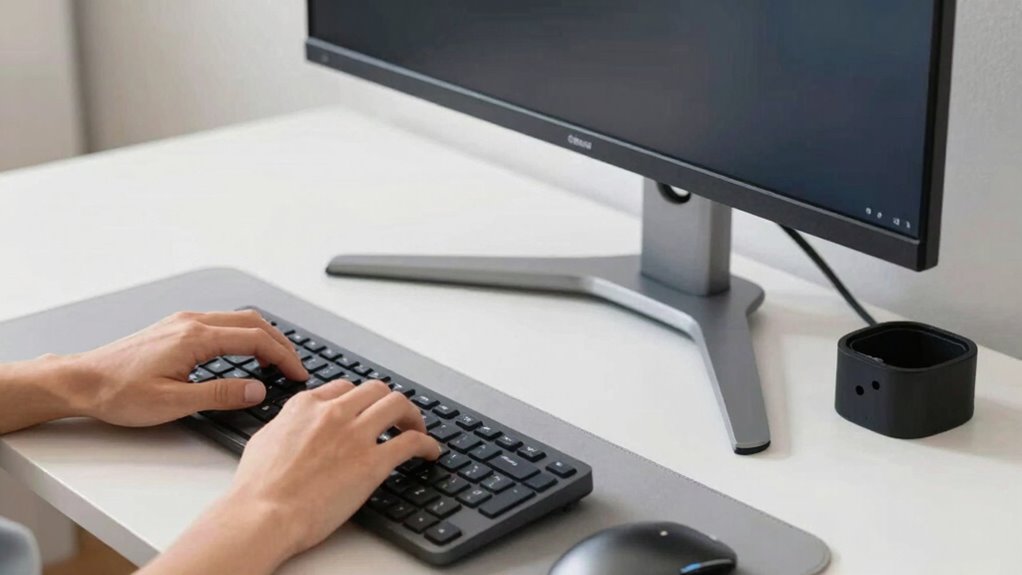
Using the right tools and accessories can considerably enhance the ergonomic benefits of your standing desk setup. These accessories help improve comfort, support proper posture, and keep your workspace organized. Consider adding these essential items:
Enhance your ergonomic setup with accessories that improve comfort and organization.
- Adjustable monitor arms for flexible screen positioning
- Anti-fatigue mats to reduce leg and foot strain
- Cable management solutions for better desk organization
These ergonomic accessories ensure your workspace remains tidy and your equipment stays at excellent heights. Proper desk organization minimizes clutter, making it easier to maintain good posture throughout your workday. By investing in quality accessories, you can prevent discomfort and boost productivity, all while creating a more efficient and comfortable standing desk environment. Remember, small adjustments with the right tools can make a significant difference in your ergonomic setup.
Common Ergonomic Problems and How to Fix Them

Many people develop poor posture habits or set up their desks incorrectly, which can lead to discomfort and strain. These issues often go unnoticed until they cause pain or fatigue. Fortunately, you can fix them by adjusting your posture and optimizing your desk setup.
Poor Posture Habits
Have you noticed how easy it is to develop poor posture habits when working at a standing desk? These habits can lead to neck strain and muscle fatigue if left unchecked. To avoid this, watch out for these common mistakes:
- Slouching or leaning forward, straining your neck and shoulders.
- Locking your knees or standing in one position too long, causing muscle fatigue.
- Hunching your shoulders or craning your neck to see your screen better.
These habits often happen unconsciously but can cause discomfort and long-term issues. Regularly check your posture, keep your shoulders relaxed, and shift your weight periodically. Proper posture minimizes neck strain and keeps your muscles engaged, making your standing desk experience more comfortable and sustainable.
Incorrect Desk Setup
An improperly adjusted desk setup can quickly lead to discomfort and strain during your workday. Common issues include desk clutter, which hampers movement and increases stress, and incorrect chair height, causing poor posture. To fix this, focus on organizing your workspace and setting your chair correctly. Use the table below as a quick reference:
| Problem | Solution | Tip |
|---|---|---|
| Desk clutter | Clear unnecessary items and organize | Keep essentials within reach |
| Chair too high | Adjust chair height for feet flat | Maintain knees at 90° |
| Chair too low | Raise chair so hips are level | Use a footrest if needed |
| Screen position | Place screen at eye level | Keep neck neutral |
| Keyboard placement | Keep keyboard close and at elbow height | Avoid reaching forward |
Proper setup reduces strain and boosts productivity.
Tips for Maintaining Good Posture Throughout the Day
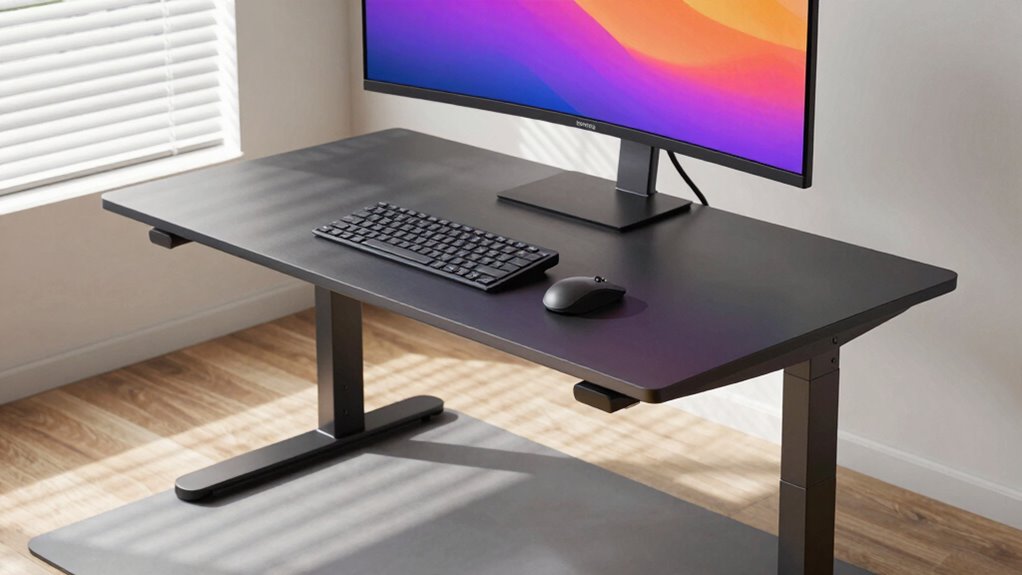
Maintaining good posture throughout the day requires conscious effort and regular adjustments. To stay aligned, pay attention to your footwear choices—opt for supportive shoes that keep your feet stable. Proper desk organization also plays a pivotal role; keep your essentials within easy reach to avoid leaning or twisting. Here are three tips to help you stay upright and comfortable:
- Take short breaks frequently to stretch and reset your posture.
- Shift your weight from one foot to the other when standing to avoid fatigue.
- Regularly check your desk setup, ensuring your screen, keyboard, and mouse are at ergonomic heights.
How to Test and Fine-Tune Your Standing Desk Setup

To guarantee your standing desk setup supports your comfort and productivity, you’ll need to test and fine-tune it regularly. Start by standing at your desk with your feet flat on a sturdy desk mat, which reduces fatigue. Adjust your monitor height so the top of the screen is at eye level, preventing neck strain. Your keyboard should be positioned so your elbows are at a 90-degree angle, with wrists straight. Use a footrest if your feet don’t rest flat on the ground comfortably, ensuring proper weight distribution. Move around and shift your stance periodically to identify any discomfort or misalignment. Check if your desk height feels natural and tweak it as needed. Regular testing helps you maintain an ergonomic setup that minimizes fatigue and maximizes comfort.
Troubleshooting: What to Do When Something Feels Off

When something feels off after setting up your standing desk, it’s important to identify the source of discomfort quickly. Start by checking your stance and equipment. Here are three quick fixes:
If discomfort arises, check your stance and equipment for quick, effective fixes.
- Adjust your footrest or add a padded one if your feet feel strained.
- Use a desk mat to reduce pressure on your legs and improve stability.
- Ensure your monitor and keyboard are at the right height to prevent neck or wrist strain.
Sometimes, small tweaks make a big difference. If your feet ache, a better footrest or cushioned mat can help. If your back feels tight, adjusting your desk height or adding a supportive mat can improve posture. Keep fine-tuning until everything feels natural and comfortable.
Frequently Asked Questions
How Often Should I Adjust My Standing Desk During the Day?
You should adjust your standing desk about every 30 to 60 minutes to maintain good ergonomics. Incorporate ergonomic accessories and follow sit-stand routines to prevent strain and fatigue. Regularly changing your position helps reduce discomfort and improves circulation. Keep a timer or reminder handy to prompt adjustments, ensuring that your screen, keyboard, and desk height stay aligned with your body’s needs throughout the day.
What Are Signs My Desk Setup Is Causing Discomfort?
If your neck’s protesting louder than your morning coffee or your shoulders feel like you’ve been carrying the weight of the world, it’s time to listen. These are signs your desk setup’s causing discomfort. Boost your posture awareness, tweak your ergonomic accessories, and make those adjustments. Remember, a happy, pain-free body means you’re doing it right—so don’t ignore the signals!
Are There Recommended Desk Heights for Different Body Types?
You should adjust your desk height so your elbows are at a 90-degree angle, matching your ergonomic chair height for comfort. For different body types, aim to keep your wrists in a neutral position, ensuring wrist alignment while typing or using a mouse. This setup helps prevent strain and discomfort, so fine-tune your standing desk to fit your height and maintain proper ergonomics for ideal support.
How Can I Prevent Strain on My Neck and Shoulders?
To prevent neck tension and shoulder pain, keep your monitor at eye level so you don’t tilt your head up or down. Maintain relaxed shoulders and keep your keyboard and mouse close to avoid reaching. Adjust your standing desk height to ensure your elbows are at a 90-degree angle. Take regular breaks, stretch your neck and shoulders, and stay mindful of posture to reduce strain and discomfort.
What Are the Best Ways to Incorporate Movement Into Standing Work?
Want to boost your standing desk routine? Start by scheduling regular movement breaks and incorporate active stretching to keep your muscles engaged. Shift your weight from one foot to the other, or walk around for a few minutes every hour. These simple actions can prevent stiffness, reduce fatigue, and improve circulation. Keep your body active, and you’ll stay energized and comfortable throughout your workday.
Conclusion
By dialing in your standing desk setup, you’ll boost comfort and reduce strain all day long. Imagine a coworker, Sarah, who felt constant neck pain until she adjusted her screen to eye level and set her keyboard at the right height. Now, she works pain-free and stays energized. Take a few minutes to fine-tune your workspace—small tweaks can make a huge difference in how you feel at the end of the day.